

• Contact Us
Monday, 6 de July de 2026
  • Español
Productos Gamer
  • Main
  • News
  • Nintendo
  • PC Gaming
  • PlayStation
  • Xbox
No Result
View All Result
  • Main
  • News
  • Nintendo
  • PC Gaming
  • PlayStation
  • Xbox
No Result
View All Result
Productos Gamer
No Result
View All Result
ADVERTISEMENT
Home Guides

How to Improve Windows 11 Gaming Performance

Carlos G by Carlos G
4 years ago
in Guides
Reading Time: 24 mins read
0
0
77
VIEWS
FacebookTwitterWhatsApp
ADVERTISEMENT

+ POSTS:

graphics card

How to maintain and get the most out of my graphics card.

3 years ago
68
Mejores Ratones

Future-Proof Your Gaming Setup: Top 5 Mice for 2023

3 years ago
74
ADVERTISEMENT
ADVERTISEMENT
ADVERTISEMENT

Microsoft says that Windows 11 is the best Windows operating system for PC gaming because it has several improvements to the user interface and quality of life. However, many gamers have reported that they are not happy with the performance of their system.

If you want to improve your gaming performance, we’ll go over 15 suggestions for making Windows 11 better for gaming.

5. Modify Graphics Preferences

  • 1. Firsts Steps
  • 2. Close Unused Applications
  • 3. Disable Programs when they Startup
  • 4. Turn on Game Mode
  • 5. Modify Graphics Preferences
  • 6. Change the GPU Scheduling
  • 7. Turn off Notifications
  • 8. Free up Drive Space on the System
  • 9. Turn off Animations effects
  • 10. Change the Visual Effects (Advanced)
  • 11. Run Update Windows
  • 12. Graphics Drivers Should Be Updated
  • 13. Change the Power Plan
  • 14. Use Ethernet and Modify DNS in Windows 11
  • 15. Turn off the In-Game Overlay
  • 16. Proceed to Repair System files
  • 17. Conclusions
Previous
Next

Many PCs use processors with integrated graphics that allow them to provide basic video features while consuming little power. Others have dedicated video cards for more demanding applications and games. Depending on the apps, Windows 11 usually switches between graphics cards automatically. You may, however, want to force a specific app or game to use the discrete video card or the built-in integrated graphics. You can easily change the graphics preference for your games in Windows 11 to help boost performance on games with high system requirements or save power on games that don’t.

Go to Settings > System > Display > scroll down > Graphics. In the Graphics settings, find, and click on the game in the list and select options.
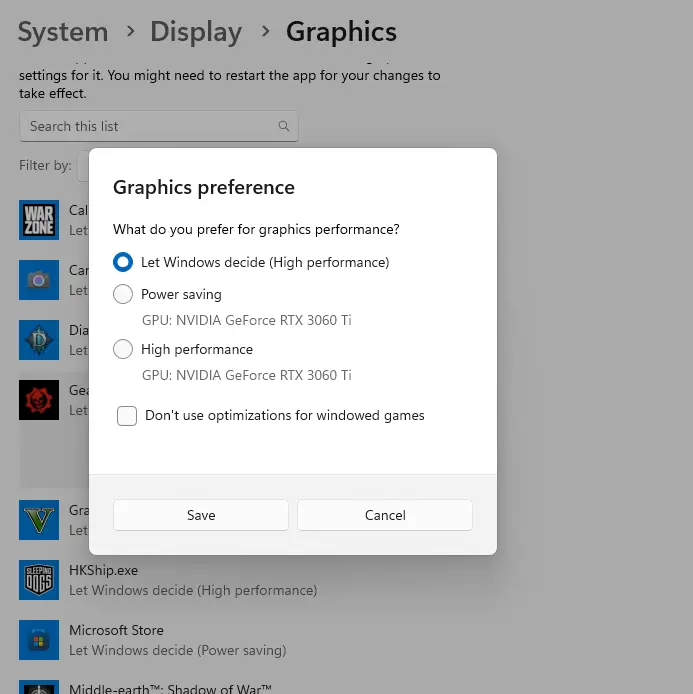
Windows 11 Graphics preference

You can choose to Let Windows Decide, or you can choose Power Saving by using the integrated GPU. On a laptop, this is a smart option to select for games that don’t demand a strong graphics card to save battery life. The other option is High Performance, which will use your higher-powered discrete GPU for the games that require it. Select the option that most closely matches the game you’re playing. Click Save once you’ve finished.
5. Modify Graphics Preferences

  • 1. Firsts Steps
  • 2. Close Unused Applications
  • 3. Disable Programs when they Startup
  • 4. Turn on Game Mode
  • 5. Modify Graphics Preferences
  • 6. Change the GPU Scheduling
  • 7. Turn off Notifications
  • 8. Free up Drive Space on the System
  • 9. Turn off Animations effects
  • 10. Change the Visual Effects (Advanced)
  • 11. Run Update Windows
  • 12. Graphics Drivers Should Be Updated
  • 13. Change the Power Plan
  • 14. Use Ethernet and Modify DNS in Windows 11
  • 15. Turn off the In-Game Overlay
  • 16. Proceed to Repair System files
  • 17. Conclusions
Previous
Next
Tags: fpsgame modeOptimizationPC GamingPerformanceWindows 11
Previous Post

Persona 5 Royale arrives on Game Pass this week.

Next Post

Ryzen 5 7600X, AMD’s new mid-range processor: Is it worth it?

Carlos G

Carlos G

Hello, gamers! I'm Carlos, a technical support expert and a passionate gamer. On my website, you'll find unbiased reviews and detailed articles on the latest gaming products. My goal is to help you make informed decisions on the best gaming products, from keyboards to monitors. If you're a gaming enthusiast, you've come to the right place! Thank you for visiting us.

Related Posts

Logitech Ergo K860 Keyboard
Guides

How the Logitech Ergo K860 Keyboard Can Help You Avoid Wrist Tendinitis

by Carlos G

How to Know if You Have De Quervain’s TendinitisFeatures of the Logitech Ergo K860 KeyboardMy Experience with the Logitech Ergo...

Read moreDetails
Anker MacBook Air

How do I connect multiple monitors to a Macbook Air M1 or M2 with USB-C?

2 years ago
1.2k
Mejores Ratones

Future-Proof Your Gaming Setup: Top 5 Mice for 2023

3 years ago
74
Top 5 best SSDs

Top 5 best SSDs for gaming of 2023.

3 years ago
152

Leave a Reply Cancel reply

Your email address will not be published. Required fields are marked *

Acepto los Términos y Condiciones y la Política de Privacidad.

POPULAR ARTICLES

  • laptops para gaming

    5 mejores laptops para gaming baratas para este 2022

    0 shares
    Share 0 Tweet 0
  • 5 mejores Laptops para Gaming Baratas para este otoño 2023

    0 shares
    Share 0 Tweet 0
  • ¿Qué pasa si mi GPU llega a los 80 grados de temperatura?

    0 shares
    Share 0 Tweet 0
  • Haz streaming como un profesional con el micrófono HyperX SoloCast en 2023

    0 shares
    Share 0 Tweet 0
  • ¿Puedo jugar Fortnite sin tarjeta gráfica dedicada en 2023?

    0 shares
    Share 0 Tweet 0

REVIEW ARTICLES

A Deep Dive into Tomb Raider: The Legend of Lara Croft

Logitech Ergo K860 Keyboard

Logitech Ergo K860

The Logitech Ergo K860 is an excellent investment for those looking $110
Nintendo Switch OLED

Switch OLED

The Nintendo Switch OLED revolutionizes the gaming landscape through its 7-inch
ASUS TUF Gaming A15 imagen destacada

ASUS TUF Gaming A15 (2023)

The ASUS TUF Gaming A15 (2023) is a gaming laptop that,

DAILY DEALS

RECENT COMMENTS

  • http://boyarka-inform.com/ on MacBook Air M2: Is it Worth it for Daily Tasks, Work, and Gaming?
  • pba betting philippines on This Logitech could be your next gaming mouse
  • Kindra Bedor on Gears of War could get remastered just like Master Chief Collection, according to rumors.

SEE CATEGORIES

We are an Amazon Affiliate

We are an Amazon partner

Productos Gamer is a participant in the Amazon.com.mx Affiliate Program, an affiliate advertising program that enables websites to earn advertising commissions, advertising, and links to Amazon.com and Amazon.com.mx.

Read our:  Privacy Policy

No te pierdas nada

Reseñas, guías y las mejores ofertas gamer directo a tu correo.

Productos Gamer

Noticias, análisis y guías de videojuegos para México, Estados Unidos y Latinoamérica. Te ayudamos a elegir mejor.

f X ▶

Secciones

  • Noticias
  • Nintendo
  • PC Gaming
  • PlayStation
  • Xbox

Sitio

  • Inicio
  • Contáctanos
  • Política de privacidad

Idioma

  • Español
  • English
© 2026 Productos Gamer · Todos los derechos reservados Privacidad Contacto

Como Asociado de Amazon, Productos Gamer gana por las compras que califican.

Welcome Back!

Login to your account below

Forgotten Password?

Retrieve your password

Please enter your username or email address to reset your password.

Log In

Add New Playlist

No Result
View All Result
  • Main
  • News
  • Nintendo
  • PC Gaming
  • PlayStation
  • Xbox

© 2026 Productos Gamer. Todos los derechos reservados.

Usamos cookies propias y de terceros (Google AdSense, Amazon Afiliados) para mejorar tu experiencia y mostrar anuncios. Al continuar, aceptas nuestra Política de Privacidad.