
'/%3E%3Cpath%20fill='%2330c2dc'%20d='M493%20379c-14-6%2010-16%2014-16-8-1-21%203-27%203l-57-3c-7-1-12-10-10-10-3%203-37-9-27%200l9%2014c15-3%2030%208%2013%2014%203%200%2057-4%2085-2'/%3E%3Cpath%20fill='%23f9aa51'%20d='M475%20366v13q-1%207-7%207h-35q-6-1-7-7v-13q0-6%207-7h35q7%201%207%207'/%3E%3Cpath%20fill='%230c8489'%20d='M388%20335c-11%205-28-12-25-24%203-13%2028-2%2029%2014%207-2%2020%202%2025%207%209-11%2038-3%2041%2010%2011-13%2028-9%2034-3%2013-10%2033-4%2030%207-3%2012-29%2015-37%206-1%201-20%200-22%2016h-11c-3-4-2-14-1-15-11%204-29-3-34-10-7%204-25-1-29-8'/%3E%3Cpath%20fill='%23fcca3d'%20d='m419%20304-3%203c-7-4-11%208-19-2-2-3-3-10%205-16%205-3%2018-5%2019%200%203%206%207%206%204%209l4%203v9zm56%2031c-15%204-16%209-15%2012q-7-6-1-10c-9-8-10%206-8-6%201-8%2024%205%2018-15h9q-1%2015%2017%2019c0%2024%202-3-6%205-2%200-5-6-14-5'/%3E%3Cpath%20fill='%238f4620'%20d='M418%20268c-4-24%2020-46%202-44-16%201-18-2-18-2-6-7%2010-11%209-20q2%2011%205-4c2%206%204%208%205-3%205%207%2017%205%2025%2010q-3-6-10-11c-12-11%2012-9%2012-9%2033-11%2044%2012%2061%2012-17%203%2013-2%2038%2058-18-11%2012-1-7%2067%200%200-45-57-36-39-10-5-20-18-20-18-11%203-2%204-1%2020%200%200%2043%2030%2045%2036%201%206-10%204-25%207-16%202-23-20-22-10s-16%205-16%205-19-29-19-9c-39-3-20-15-20-15s10%202%208-2c-2-3-12-4-16-29m-7-66'/%3E%3Cpath%20fill='%23f9c83a'%20d='M407%20220c10%203%2015-3%2016%204%204%204-22%209-19%2014-7%203-18-10-5-16%201-5%206-3%206-3l6-8q3%207-4%209'/%3E%3Cpath%20fill='%23a8ac71'%20d='M403%20309c-15%201-19%205-23-16-18-16-8-25-7-28%201-8-12-11-15-10-1-8%2022-1%2021%209-1%209-7%2011%206%2024%205%204%203%2014%2011%2011-1%204%203%2010%207%2010m6-18c10-8-24%202-26-24-1-15%2027-22%2023-34l-5-3q1-4%207-3c19%2015-11%2027-14%2038-4%2024%2031-5%2025%2029l-3%205q-7-4-7-8m-11-54c-25%206-23-35-7-35%201%2020-15%2015%205%2015-8%200-13%2011-3%2012q1%206%205%208'/%3E%3C/svg%3E)

Table of Contents
Imagine being able to split a gaming PC and turn your elite gaming machine into two—or even more—mid-range systems. Using ASTER Multiseat software, you can not only run both systems at the same time to play, but also easily revert to your high-end setup whenever you want. Let’s look at how splitting a gaming PC this way lets you save money and get the most out of your high-end system, turning it into two versatile mid-range computers.
Last updated: August 2026.
What are the main advantages?
The biggest advantage of setting up a PC for multiseat use comes down to savings. If you already own a powerful computer, you avoid having to buy multiple machines for your family or friends. The only thing you’ll need to buy is the extra peripherals (keyboards, mice, and speakers or headphones), and you probably already have those.
One of the main advantages is being able to play your favorite titles across several local Windows users, which optimizes storage space. This means that if someone later downloads the game from a store like Steam, Epic Games Store, Xbox Game Pass, etc., and you own the license to play it, you won’t need to download it again. You can do this as long as your game is on another physical drive or a separate partition.

You’ll save by investing in hardware upgrades for a single machine and cut power consumption by running just one processor. On top of that, when only one user is active, they’ll have the full power of the CPU at their disposal.
Why not use a hypervisor like VMware or Hyper-V?
When you use virtualization software such as Microsoft’s Hyper-V, VMware, or VirtualBox, these let a main or host operating system (OS) run many virtual machines inside itself. The catch is that you’d have to buy additional Windows licenses (or licenses for other programs) for each virtual machine, as well as allocate storage to them, which makes it a fairly expensive solution. As for storage, you may run short on space for your games once you split it across your virtual machines.
Why not buy a used or new PC?
For many people, buying a used PC isn’t the first idea that comes to mind. That may be due to its occasionally high cost or simply the wish to avoid any problems it might have.
Buying a new PC would obviously be ideal. However, keep in mind that the more devices you have at home, the higher your electricity bill will be—regardless of whether the computer is new or secondhand.
And what are the disadvantages?
Multiseat setups have their advantages, as explained above, but they also have drawbacks. For example, if the gaming PC breaks down or stops working, none of the users will be able to use their respective Windows sessions—which can be a problem if the machine is also used for work or study by family members or friends.
Finally, you need to keep the power supply and the processor in mind. Using your PC for long periods with simultaneous users can cause the processor (CPU) to overheat, or even shut down completely, partly due to the lack of adequate cooling. Be sure to check the manufacturer’s specifications for your processor (CPU) to learn what temperatures it can reach, so you know what kind of cooling it will need (air or water), as well as the recommended power supply for the processor and the number of graphics cards you plan to use.
What hardware will you need?
To get the most out of the gaming experience, we recommend having at least one monitor for each user. You can connect keyboards and mice via USB or powered hubs if needed, along with audio connections.
Today’s computers output video through VGA, HDMI, or DisplayPort ports. If your PC only has one of these port types, your options may be limited. That said, we suggest having one or two dedicated graphics cards (GPUs) to connect multiple monitors and maximize performance, especially when playing on high-quality settings. If you run out of video ports, you can also add extra monitors over USB (ideally using DisplayLink technology) or even wirelessly over WiFi.
Finally, we do NOT recommend using a laptop to set up a multiseat configuration. These machines have limited ports that can cause connection and ventilation issues. Their performance may also be lower than a desktop PC’s, which generally offers more room to add video or graphics-processing cards (GPUs) and tends to have more adequate cooling.
How to make your PC multiseat
To split a gaming PC, here’s what you’ll need to get started:
- Your high-end PC
- ASTER Multiseat (the thing that works the magic)
- A few games already downloaded and installed
- Two or more monitors and peripherals
- Time for the setup, since it takes about one to two hours.
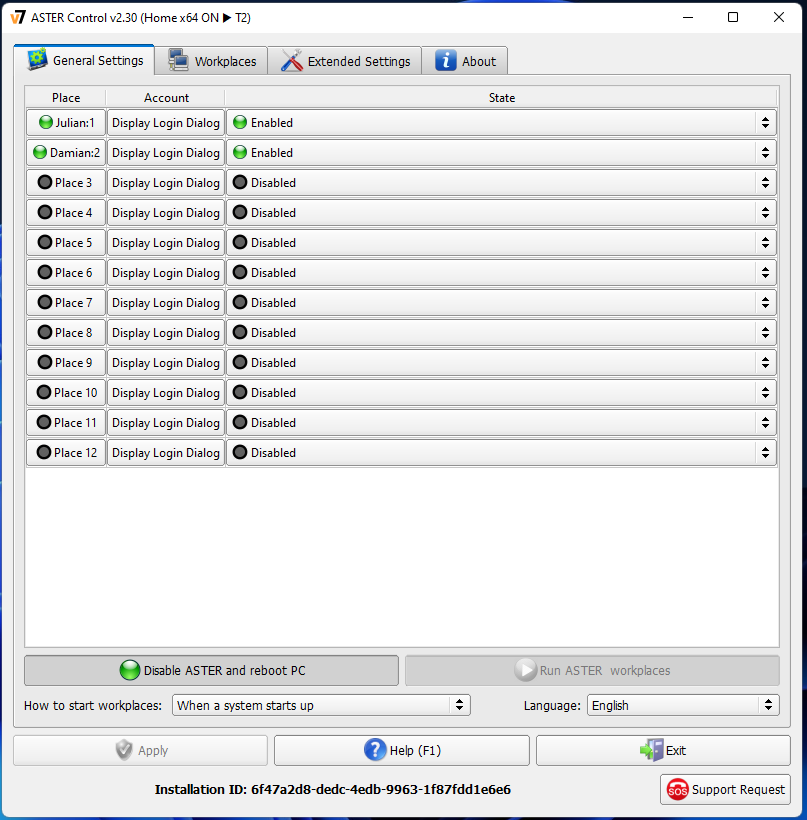
ASTER is compatible with Windows 7, 8, 10, and 11, as well as Windows Server 2016, 2019, and 2022, and it lets you create up to 12 independent workstations on a single PC.
Buying an app isn’t always an easy decision. Before you buy, I recommend downloading and trying ASTER’s 14-day trial. You can even reactivate a new trial period to experiment with more users (up to 12) before settling on your license.
ASTER offers a range of licenses:
- ASTER Pro: a lifetime license for 2, 3, or 6 users; the number of workstations can be expanded up to a total of 12.
- ASTER Home: an annual subscription available for 2, 3, or 6 users. It’s transferable to another machine, but it doesn’t let you expand the number of workstations afterward.
With the ASTER Pro-2, Pro-3, and ASTER Pro-6 versions, you can add as many additional workstations as you need at any time (but no more than 12 in total) using the ASTER Pro-2, Pro-3, or Pro-6 license.
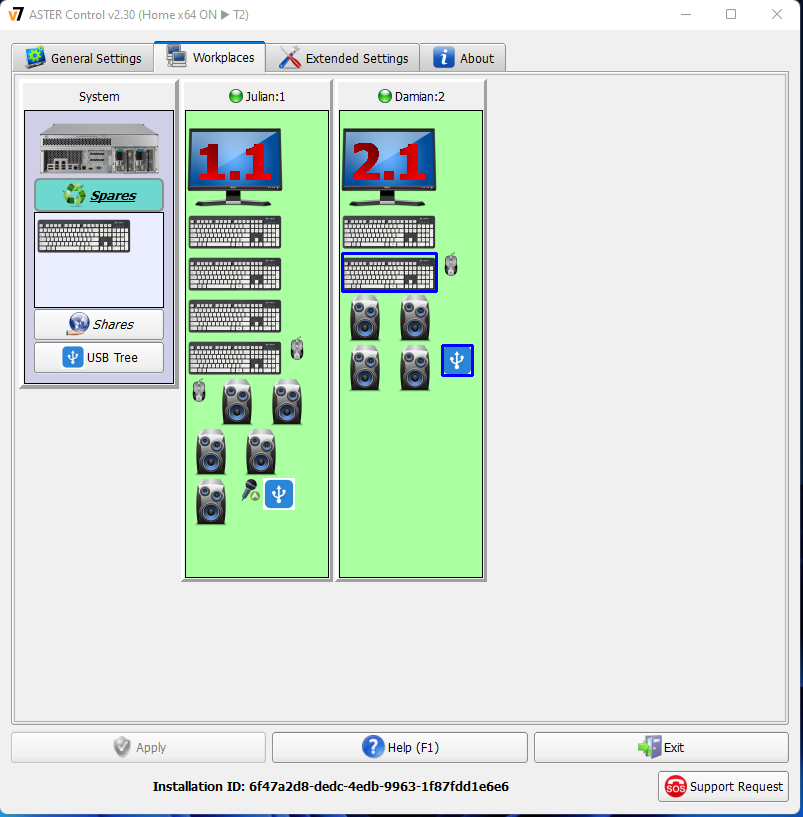
The ASTER Multiseat software is very easy to learn and use.
For full instructions, you can go to the following link: https://www.dokwiki.ibik.ru/es/v2/core/quickstart
Some issues to consider
When playing multiplayer titles, your session may occasionally be interrupted by the Easy Anti-Cheat system. For example, if two people try to play the same game at the same time, they won’t be allowed to keep two active sessions running simultaneously. This behavior varies depending on the game’s developer.
You should be careful when running each game, since it can slow down your PC overall. If your sessions perform poorly, try lowering the games’ graphics settings to keep things balanced.
As for Valve, it hasn’t announced anything on the matter, but some users worry it could trigger an unfair VAC ban when playing games like Counter-Strike and Dota 2. I’d suggest using this tool at your own risk.
Some applications must be uninstalled before installing ASTER because they’re incompatible, such as: BeTwin, SoftXpand, WM Program, and similar ones. Applications that are partially incompatible and may require uninstalling include: NVIDIA 3D Vision, NVIDIA GeForce Experience, VulkanRT, AMD Gaming Evolved, MSI Afterburner, and RivaTuner.
Conclusion
ASTER software offers an innovative approach to maximizing the potential of your high-end computer, letting friends and family share its capabilities. This technology can be a game-changer for households and shared spaces, potentially saving money on multiple devices. That said, as with any software, there’s always an element of risk involved. While ASTER has its upsides, it’s essential to proceed with caution. There may be challenges or issues not covered in this article. Always do your research and make sure you’re well informed before making a decision. Your device’s safety and performance should always come first.