
'/%3E%3Cpath%20fill='%2330c2dc'%20d='M493%20379c-14-6%2010-16%2014-16-8-1-21%203-27%203l-57-3c-7-1-12-10-10-10-3%203-37-9-27%200l9%2014c15-3%2030%208%2013%2014%203%200%2057-4%2085-2'/%3E%3Cpath%20fill='%23f9aa51'%20d='M475%20366v13q-1%207-7%207h-35q-6-1-7-7v-13q0-6%207-7h35q7%201%207%207'/%3E%3Cpath%20fill='%230c8489'%20d='M388%20335c-11%205-28-12-25-24%203-13%2028-2%2029%2014%207-2%2020%202%2025%207%209-11%2038-3%2041%2010%2011-13%2028-9%2034-3%2013-10%2033-4%2030%207-3%2012-29%2015-37%206-1%201-20%200-22%2016h-11c-3-4-2-14-1-15-11%204-29-3-34-10-7%204-25-1-29-8'/%3E%3Cpath%20fill='%23fcca3d'%20d='m419%20304-3%203c-7-4-11%208-19-2-2-3-3-10%205-16%205-3%2018-5%2019%200%203%206%207%206%204%209l4%203v9zm56%2031c-15%204-16%209-15%2012q-7-6-1-10c-9-8-10%206-8-6%201-8%2024%205%2018-15h9q-1%2015%2017%2019c0%2024%202-3-6%205-2%200-5-6-14-5'/%3E%3Cpath%20fill='%238f4620'%20d='M418%20268c-4-24%2020-46%202-44-16%201-18-2-18-2-6-7%2010-11%209-20q2%2011%205-4c2%206%204%208%205-3%205%207%2017%205%2025%2010q-3-6-10-11c-12-11%2012-9%2012-9%2033-11%2044%2012%2061%2012-17%203%2013-2%2038%2058-18-11%2012-1-7%2067%200%200-45-57-36-39-10-5-20-18-20-18-11%203-2%204-1%2020%200%200%2043%2030%2045%2036%201%206-10%204-25%207-16%202-23-20-22-10s-16%205-16%205-19-29-19-9c-39-3-20-15-20-15s10%202%208-2c-2-3-12-4-16-29m-7-66'/%3E%3Cpath%20fill='%23f9c83a'%20d='M407%20220c10%203%2015-3%2016%204%204%204-22%209-19%2014-7%203-18-10-5-16%201-5%206-3%206-3l6-8q3%207-4%209'/%3E%3Cpath%20fill='%23a8ac71'%20d='M403%20309c-15%201-19%205-23-16-18-16-8-25-7-28%201-8-12-11-15-10-1-8%2022-1%2021%209-1%209-7%2011%206%2024%205%204%203%2014%2011%2011-1%204%203%2010%207%2010m6-18c10-8-24%202-26-24-1-15%2027-22%2023-34l-5-3q1-4%207-3c19%2015-11%2027-14%2038-4%2024%2031-5%2025%2029l-3%205q-7-4-7-8m-11-54c-25%206-23-35-7-35%201%2020-15%2015%205%2015-8%200-13%2011-3%2012q1%206%205%208'/%3E%3C/svg%3E)

If you’re like me, you love playing video games. But what if you don’t have a traditional gaming PC? Or maybe you want to take your favorite PC games on the go? In this post, I’m going to show you how to install Steam gaming platform on your eligible Chromebook. So, let’s get started!
What is Steam and what are its features?
Steam is a gaming platform that was created by Valve Corporation. It’s a digital distribution service that allows gamers to purchase and play games from a library of titles. In addition to providing a convenient way to buy and play games, Steam also offers features that can improve your gaming experience. For example, the Steam Workshop allows you to browse and install user-created modifications for games in your library. You can also use the Steam Overlay to access game guides and chat with other gamers while you’re playing. If you’re new to gaming, or if you’re looking for a convenient way to buy and play video games, Steam is a great option.
The official Steam Alpha for Chromebooks
Google a few months ago revealed its plans to bring Steam to Chromebooks officially, and now we have a Steam Alpha version of the app. Remember that versions of these Chromebooks with an Intel Core i3 or 4GB of RAM aren’t supported. Additionally, Chromebooks with 8GB of RAM apparently have issues running games that require 6GB of RAM. Another frequent problem is that computers with less than a 1080p screen can have scaling and performance discrepancies. If you have any of the following Chromebooks in the list below, you will be able to install Steam on it:
Acer Chromebook 514 (CB514-1W)
Acer Chromebook 515 (CB515-1W)
Acer Chromebook 516 GE
Acer Chromebook Spin 514 (CP514-3H, CP514-3HH, CP514-3WH)
Acer Chromebook Spin 713 (CP713-3W)
Acer Chromebook Spin 714 (CP714-1WN)
Acer Chromebook Vero 514
ASUS Chromebook CX9 (CX9400)
ASUS Chromebook Flip CX5 (CX5500)
ASUS Chromebook Flip CX5 (CX5601)
ASUS Chromebook Vibe CX55 Flip
Framework Laptop Chromebook Edition
HP Elite c640 14-inch G3 Chromebook
HP Elite c645 G2 Chromebook
HP Elite Dragonfly Chromebook
HP Pro c640 G2 Chromebook
IdeaPad Gaming Chromebook 16
Lenovo 5i-14 Chromebook
Lenovo Flex 5i Chromebook 14
Lenovo ThinkPad C14

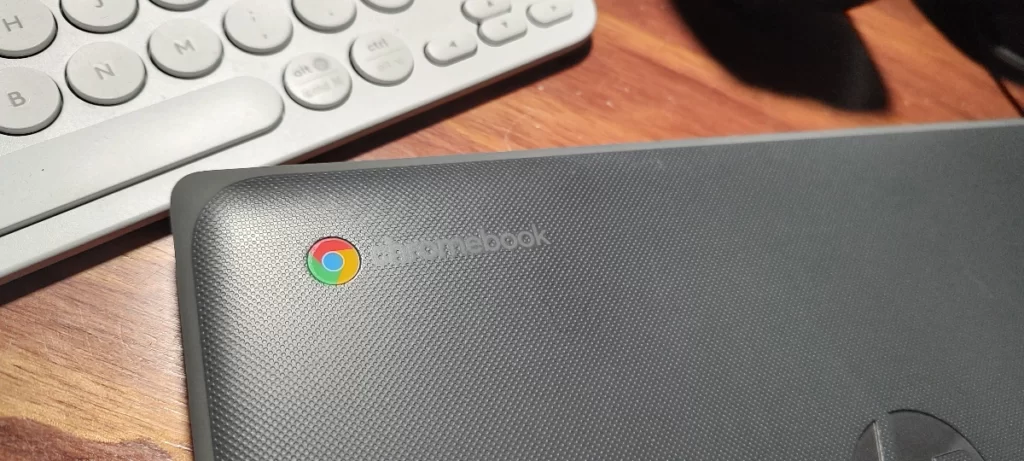
How do I know if my Chromebook is capable of Steam installation?
Chromebooks are great for their portability, long battery life, and low price point. However, one downside is that they don’t have access to as many software applications as a traditional computer. That’s where Steam comes in. Steam is a digital distribution platform for games and other software applications. Installation of Steam on a Chromebook is possible, but not all Chromebooks are eligible. In order to install Steam, your Chromebook must be running on the latest Chrome OS update and have an Intel processor.
You may also be interested in: How to split a Gaming PC between two or more people
Chromebooks with an ARM processor will not work. Additionally, only selected Chromebook models are able to run the Steam client. A full list of compatible Chromebooks can be found on the The Chromium Projects website. If your Chromebook meets the requirements, simply follow the instructions to download and install the client. Then you’ll be able to enjoy all your favorite games on your Chromebook!
What are the system requirements for installing Steam on a Chromebook?’
Chromebooks are becoming increasingly popular, but many gamers are wondering if they can install Steam on their new laptops. The good news is that, in most cases, it is possible to install Steam on a Chromebook. However, there are some system requirements that must be met first. Most importantly, your Chromebook must have Intel Iris Xe graphics, 11th generation Core i5 or i7 processors, and at least 8GB of RAM. If your Chromebook meets these requirements, then you should be able to install Steam without any problems. Just follow the instructions below.
How do I install Steam on my Chromebook?
Once you have confirmed that your Chromebook meets the requirements to run Steam, you can now proceed to install it by following the steps below:
1- On your Chromebook, launch the Settings app.
2- Scroll down to Navigate to About ChromeOS.
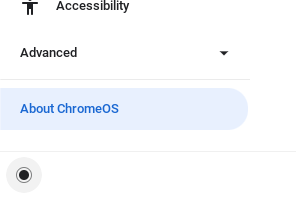
3- Select Additional details.
4- Select Change channel button next to Channel.
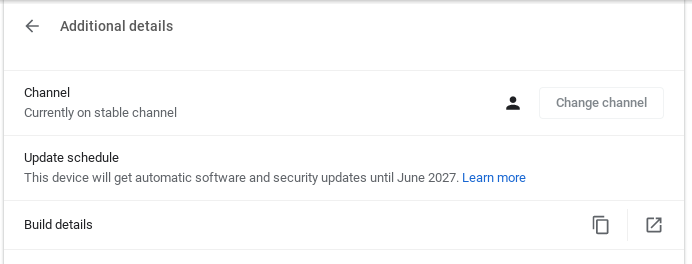
5- Choose Developer – unstable.
Important Note: Your Chromebook shouldn’t have any problems after upgrading to development channel. Your Chromebook will get wipped if you try to return to the stable state. Be sure to have a back up before you proceed.
6- Select Change channel.
7- Return to About Chrome OS and wait for the machine to update.
8- When prompted, restart the computer.
9- After the update, launch Google Chrome and enter “chrome:/flags” in the address bar.
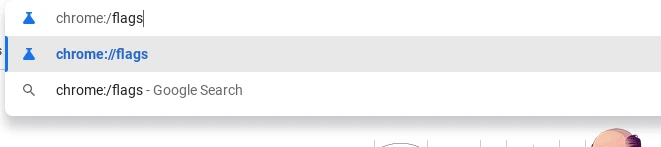
10- Set the button next to #borealis-enabled and #exo-pointer-lock to Enabled.
11- At the bottom of the Flags menu, you will find the Restart option; click it to restart your Chromebook.
12- After rebooting, use the keyboard shortcut Ctrl + Alt + T to open a terminal.
13- Type “insert_coin volteer-JOlkth573FBLGa” and press the Enter key.
14- At the bottom of the flag menu, you will find a Reset option; click on it to reboot your Chromebook.
15- Install Steam by following the installation instructions that will show up.
Keep in mind that not all Chromebooks support the Google Play Store. If yours doesn’t, you won’t be able to install Steam. However, there are a few workarounds that might allow you to get Steam up and running anyway. For example, you can install Linux on your Chromebook and then install Steam for Linux. Or you can use Chrome Remote Desktop to access a Windows computer that has Steam installed. Another method can be using the Steam Link. Whichever method you choose, make sure to follow all the instructions carefully to avoid any issues.
What games can I play on my Chromebook after installing Steam?
After you install Steam on your Chromebook, there is a whole new world of games that you can play! Here is a list of Steam games that are supported on Chromebook:
With Steam, there are endless possibilities for game play on your Chromebook. What will you play first?
Are there any other benefits to installing Steam on my Chromebook?’
If you’re a Chromebook user, you might be wondering if there are any benefits to installing Steam. After all, Steam is designed for use on PCs, and Chromebooks are relatively simple machines. However, there are actually a few advantages to using Steam on a Chromebook. For one thing, Steam runs quite smoothly on Chrome OS, and it can take advantage of the powerful hardware in many Chromebooks. In addition, installing Steam on your Chromebook gives you access to a wide range of games, from independent titles to big-budget blockbusters. So, if you’re looking for a way to improve your Chromebook gaming experience, installing Steam is definitely worth considering.
Conclusions
If you’ve read this far, congratulations! You now know everything there is to know about installing Steam on your Chromebook. We hope that you found this guide helpful and informative, and that it’s given you the confidence to go out and install Steam on your Chromebook. If you have any questions or comments, please don’t hesitate to reach out to us; we’re always happy to help. Are you excited about being able to play all your favorite games on your Chromebook? Let us know in the comments below!